Manav Sampada FAQs: Common Login and Leave Issues
Manav Sampada is an important tool for employees in Uttar Pradesh’s state government, making HR tasks easier by centralizing everything online. Whether you’re trying to log in, apply for leave, or check your leave status, many people face common issues that can be frustrating. In this article, we’ll break down the most frequently asked questions and guide you through solving common login and leave-related problems with clear, simple steps. We’ll help you navigate Manav Sampada without any confusion, just like talking to a friend.
What is the Manav Sampada Portal?
Manav Sampada is an online HR system for Uttar Pradesh government employees.
It lets you:
How Do I Log In?
Step‑by‑Step (Easy)
Tip: Make sure you choose the correct department — this is one of the major reasons logins fail.
Why Isn’t My Login Working?
Here are the most common problems people face:
Incorrect Department
If you pick the wrong department from the dropdown, the system won’t let you in.
Wrong Password
Your password might be different from what you think. If you never logged in before, departments usually give you a default password. Some guides say it’s often derived from your name and birth year.
Captcha Keeps Failing
This happens if:
You are reusing a previous captcha after editing fields
You misread similar characters (like 0 and O)
Tip: Always refresh the
OTP Not Coming
If you don’t get the OTP for verification, it usually means your mobile number isn’t registered on the portal. You must ask your HR office to update it before login works.
How Do I Apply for Leave?
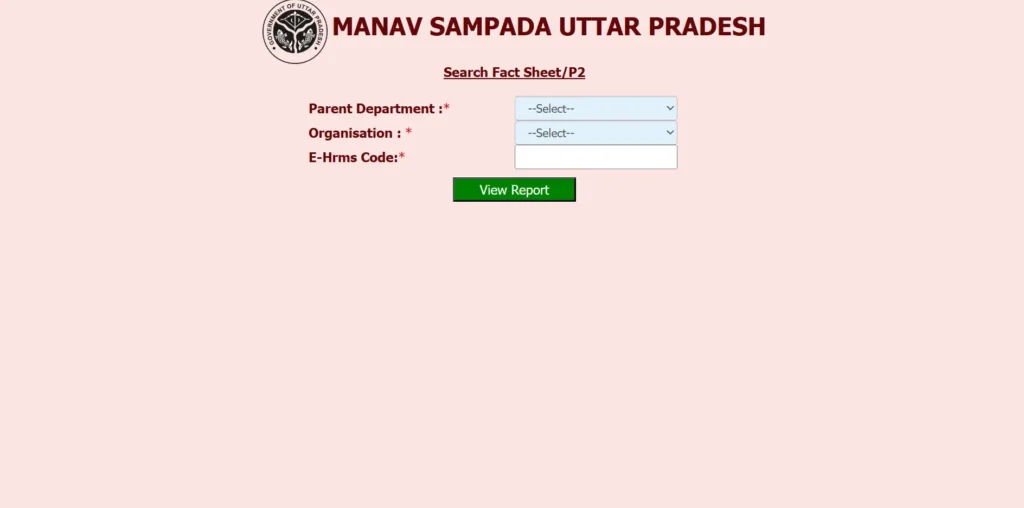
Once you’re logged in:
Tip: Double‑check your dates before submitting — if not, you can’t fix them later without help. (This is one thing most guides don’t explain clearly.) You can also read: Why Your Leave Application Is Not Approved on Manav Sampada
Can I Track My Leave After Applying?
Yes — after applying, you can view the leave status: pending, approved, or rejected.
Just go to the Leave Status / My Leave section and enter your reference number.
What If My Name or Date of Birth Is Wrong in the Portal?
You cannot change personal details yourself on the portal.
For corrections, you must contact your HR office with proof (like ID documents).
What If I Forget My Password?
Here’s what to do:
Click Forgot Password on the login page.
Select your department and enter your User ID.
Choose whether to receive reset info by SMS or email.
Reset your password once you get the link/code.
Pro Tip: After recovery, change your password to something strong and easy to remember, but not too simple.
Quick Tips Before You Log In
Leave Approval Process: What Happens After I Apply?
Once you apply for leave, your supervisor or reporting officer must approve it.
How it works:
Tip: Always apply for leave well in advance to avoid last-minute issues.
Mobile Access: Can I Use Manav Sampada on My Phone?
Yes, you can use Manav Sampada on your mobile browser, but keep in mind:
The portal is best viewed on a desktop or laptop.
If using a mobile, Chrome or Firefox are the most compatible browsers.
A mobile app for Manav Sampada is not officially available yet, but the web version works well on most devices.
Tip: Using mobile for urgent leave applications? Enable notifications to stay updated on your leave status in real-time.
FAQs
Final Thought:
Manav Sampada is designed to make things easier for government employees, but we know that tech issues can happen. By following the steps outlined here and using the quick tips, you’ll navigate the portal more smoothly. Remember, the key to managing your HR tasks efficiently is being proactive. Apply for leave early, track your status, and always reach out to HR if you’re stuck.
By staying informed about common issues and solutions, you’ll save time and avoid frustration. If you need more help, feel free to contact your department’s HR team for assistance.