How to Modify Leave Details After Application in 2026
If you’ve already submitted a leave request on Manav Sampada and realize you need to change something — like the dates or reason — don’t worry. You can usually update it, but the steps depend on how far along the approval process is.
This guide explains when you can modify leave, how to do it, and what to do when editing is not possible.

What Does “Modify Leave Details” Mean?
Modifying leave details means updating the information in your leave application after you’ve already submitted it. This could include:
When Can You Modify Leave After Applying?
You can usually modify your leave if:
The leave request is still Pending and has not yet been approved or rejected
No action has been taken by your reporting officer or DDO
If your leave is already approved or rejected, you usually cannot modify it directly and will need to take a different step.You can also read: How to Correct Bank Details in Manav Sampada Without HR 2026
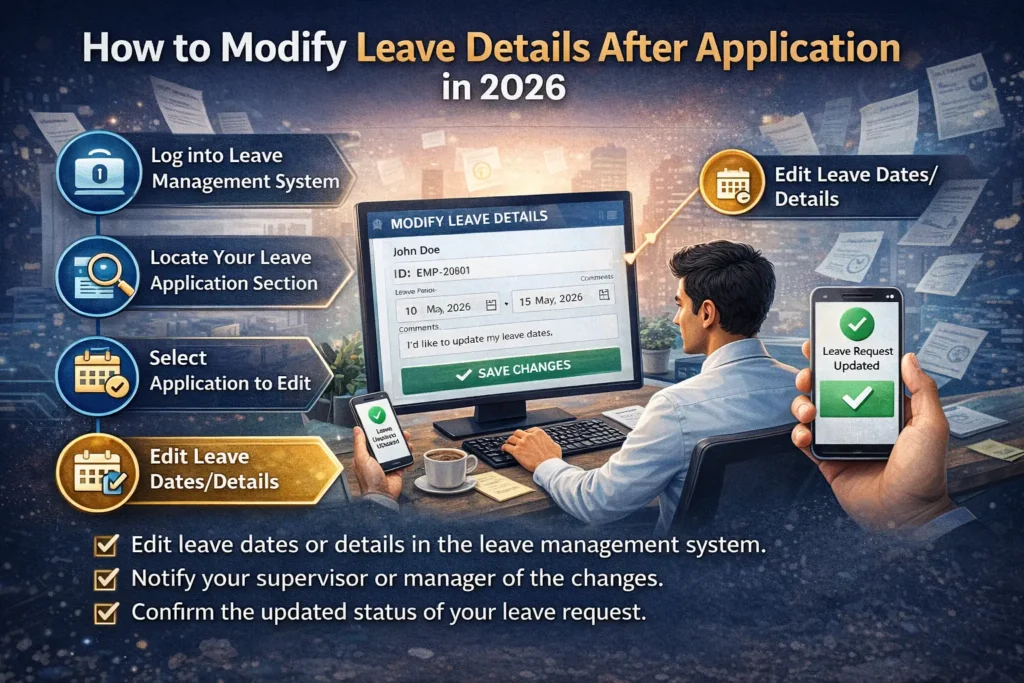
Step‑by‑Step: How to Modify Leave Details
Open the Manav Sampada portal and enter your User ID and password to log in.
Once logged in:
- Navigate to the Leave section
- Select My Leave or Leave History
- Find the leave request you want to edit
Look at the status:
- If it says Pending, you can usually modify it
- If it says Approved or Rejected, you cannot edit directly
If your leave is still pending:
- Click the Edit or Modify button beside the leave request
- Update the details you need to change
- Save the updated information
Make sure the dates and reason are correct before saving.
After modifying the details:
- Click Submit
- The updated leave will be sent to your reporting officer again for approval
This means it will undergo the approval process once more.
What If You Can’t Edit Leave?
If you do not see the “Edit” button or your leave is already approved or rejected, here are your options:
Option 1: Cancel the Leave
If the system allows:
This works best when you realize the mistake early.
Option 2: Contact Your Reporting Officer or HR
If cancel is not available:
Most of the time, a quick message to HR clears it up.
Quick Tips for Modifying Leave Smoothly
Here are some easy tips to avoid problems:
These small habits reduce the need for edits later.
Frequently Asked Questions
Final Thought:
Making changes to your leave on Manav Sampada after applying is usually possible when the leave is still pending. Just find your leave in the leave history, edit the details, and re‑submit for approval. If you can’t edit, cancel and re‑apply or ask your reporting officer or HR for support.
Stay careful with dates and details, and most leave updates will go smoothly. If you need a simple checklist for modifying leave, I can make one for you!