How to Update Your Profile on Manav Sampada in 2026
If you’re a government employee using the Manav Sampada HR portal — especially in Uttar Pradesh — keeping your profile up to date is super important. It helps ensure your service book, leave records, pay details, promotions, and personal info are correct and avoid issues later.
What Is Manav Sampada?
Manav Sampada is a government HR management system where employees can log in to view and update their service records, apply for leave, check payroll, and more. Think of it as your digital employee portal.
Why Update Your Profile Every Year?
Updating your profile isn’t just good practice — it’s often required by departments so your records stay correct and official. Errors or old info can cause problems with promotions, leave, or service history later.
What You Need Before You Start
Make sure you have:
Step-by-Step: Update Your Profile
Visit the official Manav Sampada portal at:https://ehrms.upsdc.gov.in
This is the eHRMS website
- Select your department from the dropdown.
- Enter user ID and password.
- Enter the CAPTCHA code.
- Click login.
Tip: If you forgot your password, click “Forgot Password” and follow the reset steps (email/phone).
Once logged in:
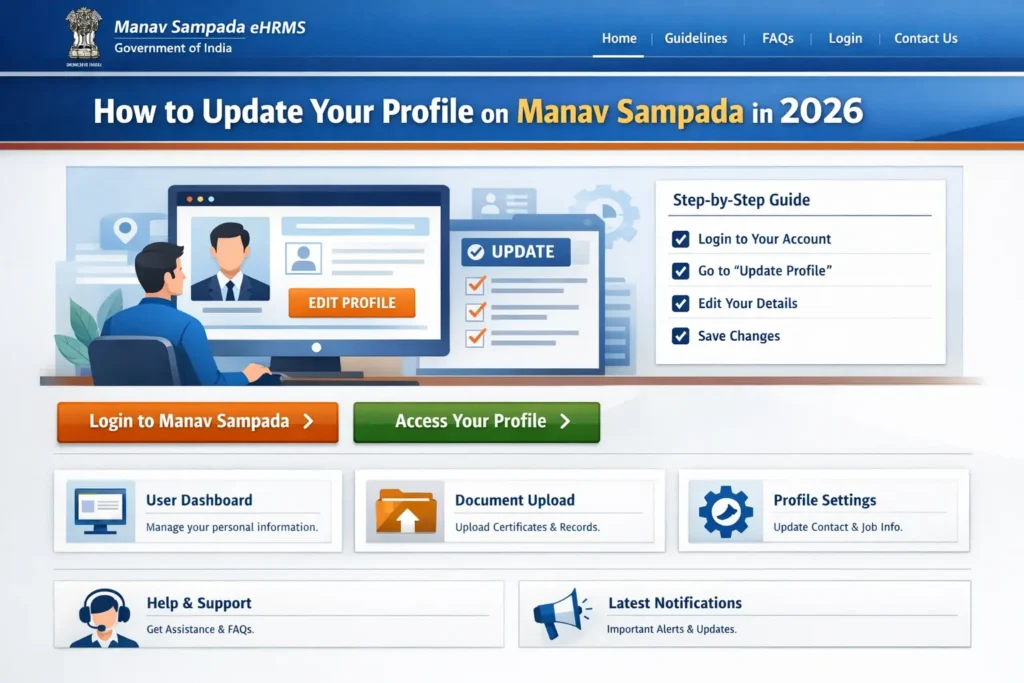
- Look for a menu like Profile or e-Profile
- This is where you can edit your personal details, contact info, and more
If you don’t see it right away, check the dashboard or main navigation menu.
Now you can update:
- Name (if official change)
- Mobile number / Email
- Address (present & permanent)
- Emergency contact
- Educational qualifications
- Any other profile fields shown
Just edit the boxes and enter updated info.
Tip: Always double-check spelling and phone numbers before saving — mistakes here are common!
Some profile changes need supporting docs (like address proof).
Just click Choose File, upload, and then Save
After updating:
- Click Save / Submit
- Review everything once more to make sure it looks correct
This confirms your profile shows the latest information.
If You Can’t Edit Something
Some fields may be locked (e.g., date of birth). In that case:
Handy Tips for a Smooth Update
Frequently Asked Questions
Final Thought:
Keeping your Manav Sampada profile updated in 2026 makes life easier. You’ll avoid errors in leave records, promotions, service histories, and avoid HR confusion later on. Just follow the simple steps above — and if something doesn’t work, reaching out to your HR admin usually fixes it fast.