Manav Sampada Portal: Solving Login and Password Errors
If you’re a government employee in Uttar Pradesh trying to use the Manav Sampada Portal (ehrms.upsdc.gov.in) and can’t log in, you’re not alone. Manav Sampada Many people struggle with login and password problems, especially if it’s their first time or the portal shows errors. In this guide, I’ll walk you through the most common issues and how to fix them — in easy steps, just like talking to a friend.
Use the Official Portal Only
Always visit the official UP Manav Sampada site:
https://ehrms.upsdc.gov.in
This ensures your data stays safe and protected.
Correct Login Steps – The Friendly Way
Here’s how to log in without mistakes:
Tip: Captcha is case‑sensitive — type it exactly as you see it, including capital letters if shown. If it’s hard to read, click the refresh button beside it.You can also read: How to Avoid Common Manav Sampada Leave Application Errors
My Password Isn’t Working — What Now?
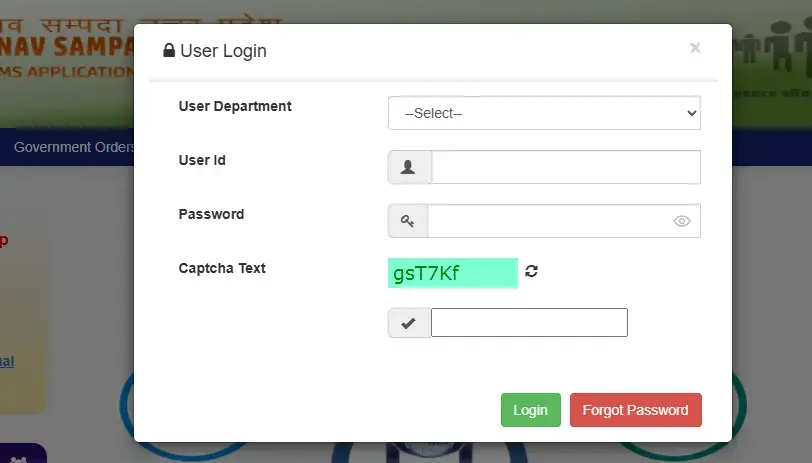
If your password doesn’t work:
Use “Forgot Password”
This is usually instant, especially if your mobile number or email is correctly linked.
Tip: If you don’t get the OTP (one‑time code), check:
Sometimes other apps block OTP messages — try turning off apps temporarily.
Troubleshoot Common Login Errors
Here are fixes for typical issues:
CAPTCHA Not Accepting
Try refreshing the CAPTCHA and type it slowly. Sometimes it helps to switch browsers if it still doesn’t work.
OTP Not Received
If you don’t get the SMS code:
Wait a few minutes (sometimes delivery is delayed).
Make sure your correct mobile number is saved in your profile.
If still no OTP, reset password using email option instead.
The Default Password Trick (If First Time)
If this is your first login, your initial password might be set by default by your department.
In many cases, it’s formed using a pattern like:
This default varies by department, but it’s a commonly used format.
Important: After your first login, immediately change this password to something secure.
Helpful Tips to Avoid Login Trouble
Still Not Working? Ask for Support
If you still can’t log in:
Frequently Asked Questions
Final Thought:
Login and password issues on the Manav Sampada Portal are super common — but they’re usually easy to fix if you follow the right steps. Stay patient, double‑check your details, and use the official reset tools. Once you’re logged in, everything becomes much easier — from applying leave to viewing your service book.


